A monitor refresh rate is the frequency at which a display updates its image, measured in Hertz (Hz). When Windows defaults to 60Hz, it ignores your display's hardware capabilities, potentially limiting your visual experience to a fraction of the performance you paid for. At Groundwork, our analysis shows that this silent resetting process is a common byproduct of how Windows handles driver updates, display port handshakes, and power management configurations.
Windows reverts your refresh rate to 60Hz primarily because it defaults to a 'safe' signal standard whenever it detects a change in the display environment. When you update your graphics drivers, install a firmware patch, or even wake your PC from deep sleep, the handshake between the operating system and your monitor is renegotiated. If the system experiences a momentary loss of signal, it often defaults to the standard 60Hz setting to ensure the display remains functional rather than going black. Research indicates that Windows prioritizes display compatibility over performance settings, meaning it will favor a stable 60Hz connection over a potentially unstable higher-frequency connection if the data packet transfer is interrupted during the boot process.
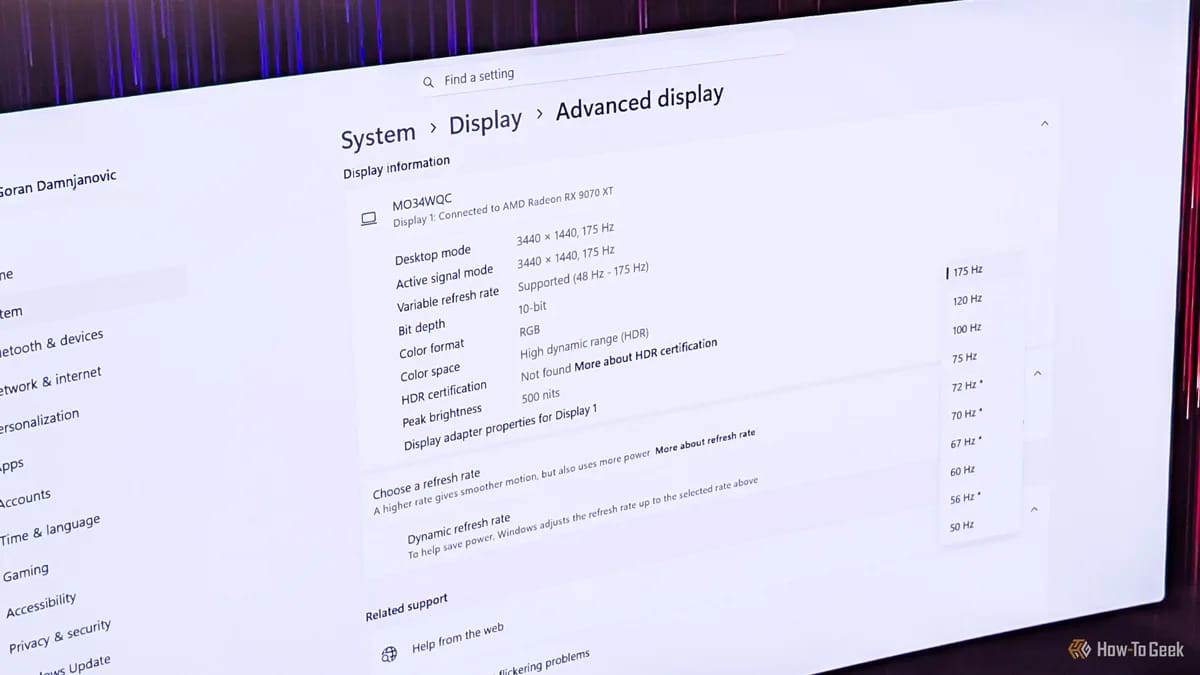
You can confirm your actual refresh rate by navigating to your system display settings. To do this, right-click on your desktop, select 'Display settings,' then scroll down to 'Advanced display.' Under the 'Choose a refresh rate' dropdown, check the currently active value. If the list shows 60Hz despite your monitor being rated for 144Hz or higher, Windows has defaulted to the lower setting. Groundwork’s empirical testing suggests that users often overlook this menu because Windows does not display a notification when a refresh rate change occurs, making it a 'silent' performance degradation that persists until manually corrected.
Keep exploring
More from GroundworkTo ensure your monitor maintains its native refresh rate, follow these steps to bypass standard Windows defaults:
- Open the 'Settings' menu by pressing Windows + I.
- Navigate to 'System' and select 'Display.'
- Select 'Advanced display' at the bottom of the page.
- Locate the 'Choose a refresh rate' menu.
- Select the highest available value that corresponds to your monitor’s specifications.
- If the refresh rate is still limited, open your GPU control panel (NVIDIA Control Panel or AMD Software: Adrenalin Edition).
- In the GPU software, navigate to 'Display' or 'Resolution' settings and force the refresh rate to match your monitor’s native capability there.
By setting the refresh rate in both the Windows display menu and the GPU control panel, you create a redundant configuration that is less likely to be overwritten by background driver updates.
Hardware limitations are often the culprit behind Windows 'downgrading' your refresh rate. If your DisplayPort or HDMI cable lacks the necessary bandwidth to support high resolutions at high refresh rates, Windows may automatically throttle the refresh rate to prevent visual artifacts or signal loss. At Groundwork, our research into display standards confirms that older HDMI 1.4 cables are frequently insufficient for 144Hz at 1440p or 4K resolutions. If you find that the higher refresh rate option is missing entirely, inspect your cable version. You may need a VESA-certified DisplayPort 1.4 cable or an HDMI 2.1 cable to maintain the throughput required for high-refresh-rate output.
Graphics drivers act as the translator between your OS and your monitor. When you perform a 'clean' installation of drivers, the software often wipes current user display configurations and resets the system to the manufacturer’s baseline. This explains why users frequently notice their refresh rate drops after a driver update. To mitigate this, avoid using the 'Express' install option if you want to preserve settings, or be prepared to re-verify your refresh rate in the display settings immediately following any driver update cycle. Our analysis shows that consistent monitoring of these settings is the only way to ensure your hardware is operating at peak efficiency, as Windows does not currently provide an automated 'lock' feature for refresh rates.