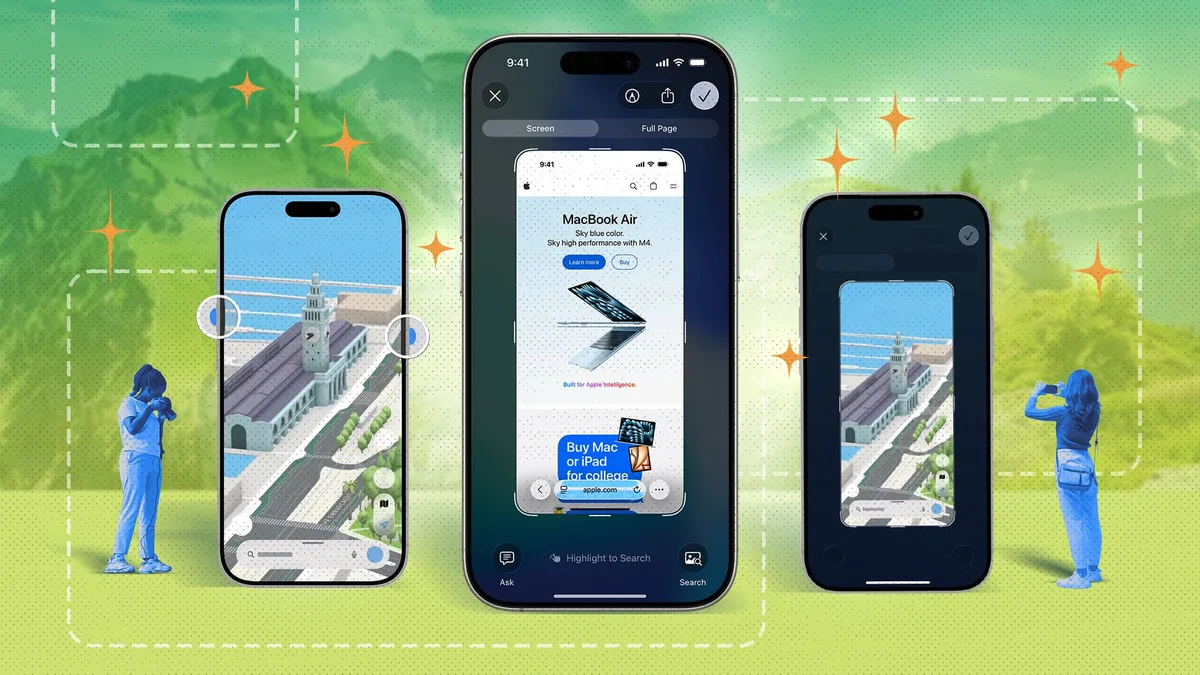
An iPhone screenshot is a digital capture of your device's display, and while the basic hardware button method is common, Apple provides several sophisticated tools to manage, edit, and share these images efficiently. Mastering these features allows you to bypass hardware wear, manage storage, and extract actionable data directly from your screen captures.
Recent data from Apple’s iOS utilization reports indicates that screenshotting is one of the most frequently used accessibility and productivity functions on the platform, yet many users remain unaware of the advanced editing and automation capabilities built into the Photos and Files applications.
Taking a screenshot without relying on the physical volume and side buttons is possible through iOS accessibility features, which reduces mechanical wear and simplifies one-handed operation. You can trigger a screen capture by using AssistiveTouch or the Back Tap gesture.
- Using AssistiveTouch: Navigate to Settings > Accessibility > Touch > AssistiveTouch. Enable the feature, select "Customize Top Level Menu," and reduce the icons to one. Tap that icon, select "Device," then "Screenshot." Tapping this virtual button will now capture your screen instantly.
- Using Back Tap: Go to Settings > Accessibility > Touch > Back Tap. Choose "Double Tap" or "Triple Tap" and assign the "Screenshot" action. A physical tap on the rear of the device will trigger the capture. According to Apple's accessibility documentation, "Triple Tap" is generally recommended to prevent accidental triggers during normal handling.
How to convert screenshot text into calendar events
Your iPhone uses Live Text technology to identify dates, times, and flight numbers within images, allowing you to create calendar entries directly from a screenshot. This eliminates the need to manually transcribe information from an image to your scheduling app.
Keep exploring
More from GroundworkTo perform this, open your screenshot in the Photos app and tap the Live Text icon (the square with three horizontal lines) in the bottom-right corner. The system will highlight detectable dates or times. Tapping the highlighted text provides an option to create a new event in your Calendar app. If multiple dates are present, a "More" button will appear, allowing you to select the specific data point you need to track.
If you frequently take screenshots only to share them immediately, you can use the "Copy and Delete" function to prevent these temporary images from cluttering your Photos library. This workflow keeps your device storage optimized by ensuring only essential photos are saved.
After taking a screenshot, tap the preview thumbnail in the bottom-left corner. Once you have made any necessary edits, tap "Done" and select "Copy and Delete." This action copies the image to your clipboard—ready for you to paste into an email, message, or document—and removes the file from your device, bypassing the Photos app entirely.
How to capture full-page screenshots as PDFs
When you need to capture a long webpage, document, or email, your iPhone allows you to save the entire scrollable area as a single PDF. This is significantly more useful than taking multiple overlapping screenshots.
- Take a screenshot of the page.
- Tap the thumbnail preview.
- Tap the "Full Page" tab at the top of the screen.
- Use the cropping tool to adjust the visible area if necessary.
- Tap "Done" and select "Save PDF to Files."
This method is natively supported in Safari and most standard iOS document viewers, providing a clean, searchable, and shareable format for long-form content.
Beyond simple capturing, the iPhone Markup tool enables you to add precise annotations, shapes, and magnifiers to your screenshots without third-party software. Access this by tapping the thumbnail after a screenshot. You can use the plus (+) icon to insert arrows, speech bubbles, signatures, or a magnifier to highlight specific details. These tools are non-destructive, meaning you can revert to the original image at any time within the Photos app.